好多课表 · 桌面网页版Many Schedules · Web Edition
欢迎使用好多课表 Web 端。本手册帮助你快速掌握课表管理、课程排布、多视图浏览、共享协作与数据同步的全部功能。所有说明均基于「墨·纸」设计语言的桌面大屏界面。Welcome to Many Schedules for the web. This manual helps you master schedule management, course planning, multi-view browsing, sharing, and sync. All guidance is based on the desktop "Ink & Paper" interface.
产品简介Introduction
好多课表是一款「多课表聚合管理」平台。你可以在一个账号下管理多张课表(如语文课表、数学课表、钢琴课表),并用 6 种颜色区分来源,在统一的日历中一目了然。Many Schedules is a multi-schedule aggregation platform. Manage many schedules (e.g. Chinese, Math, Piano) under one account, each distinguished by one of six colors, all in one unified calendar.
Web 端的特点About the Web edition
采用左侧全局导航 + 顶栏 + 主内容区布局,更适合鼠标与键盘操作。Left global navigation + top bar + content area, tuned for mouse and keyboard.
Web 是瘦客户端,无本地数据库,数据始终来自服务端,因此必须登录后才能查看与编辑。The web is a thin client with no local database; data always comes from the server, so login is required.
与 Flutter 移动 App 共享同一套后端 API,登录同一账号即可跨设备同步数据。Shares the same backend API with the Flutter app; sign in with the same account to sync across devices.
游客模式仅 Flutter App 端支持(本地优先存储)。Web 端不支持游客,请先登录。Guest mode exists only in the Flutter app (local-first). The web has no guest mode—please sign in first.
快速开始:登录Getting Started: Sign in
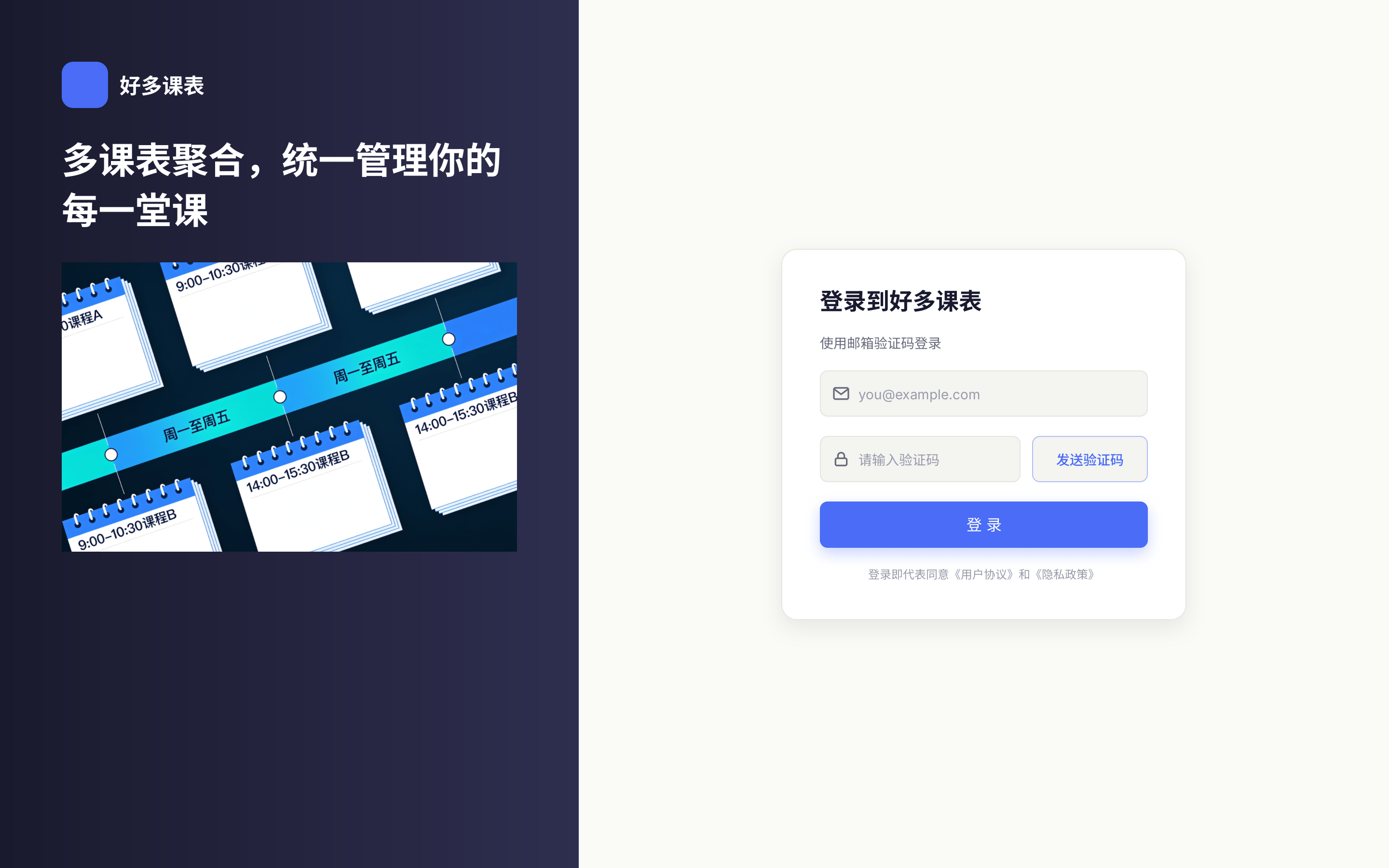
首次打开网页会进入登录页。好多课表采用「邮箱验证码登录」,无需设置密码,首次登录即自动创建账号。Opening the site takes you to the sign-in page. Many Schedules uses email-verification login—no password needed, and the first sign-in auto-creates your account.
登录步骤Sign-in steps
在邮箱输入框中填写常用邮箱,系统会即时校验格式是否正确。Type a valid email; the format is validated as you type.
点击「发送验证码」,6 位验证码将发送到你的邮箱(60 秒内可重新发送)。Click "Send code"; a 6-digit code is emailed to you (resend available after 60s).
将收到的 6 位验证码填入输入框(支持自动跳格、粘贴、退格回退)。Paste or type the 6-digit code (auto-advance, paste, and backspace supported).
勾选「我已阅读并同意《用户协议》和《隐私政策》」,按钮才会亮起。Check "I have read and agree to the User Agreement and Privacy Policy" to enable the button.
点击「登录」即可进入主页。登录态会持久保存,下次打开免登录。Click "Sign in" to enter the home page. Your session persists, so you won't sign in next time.
课表管理Managing Schedules
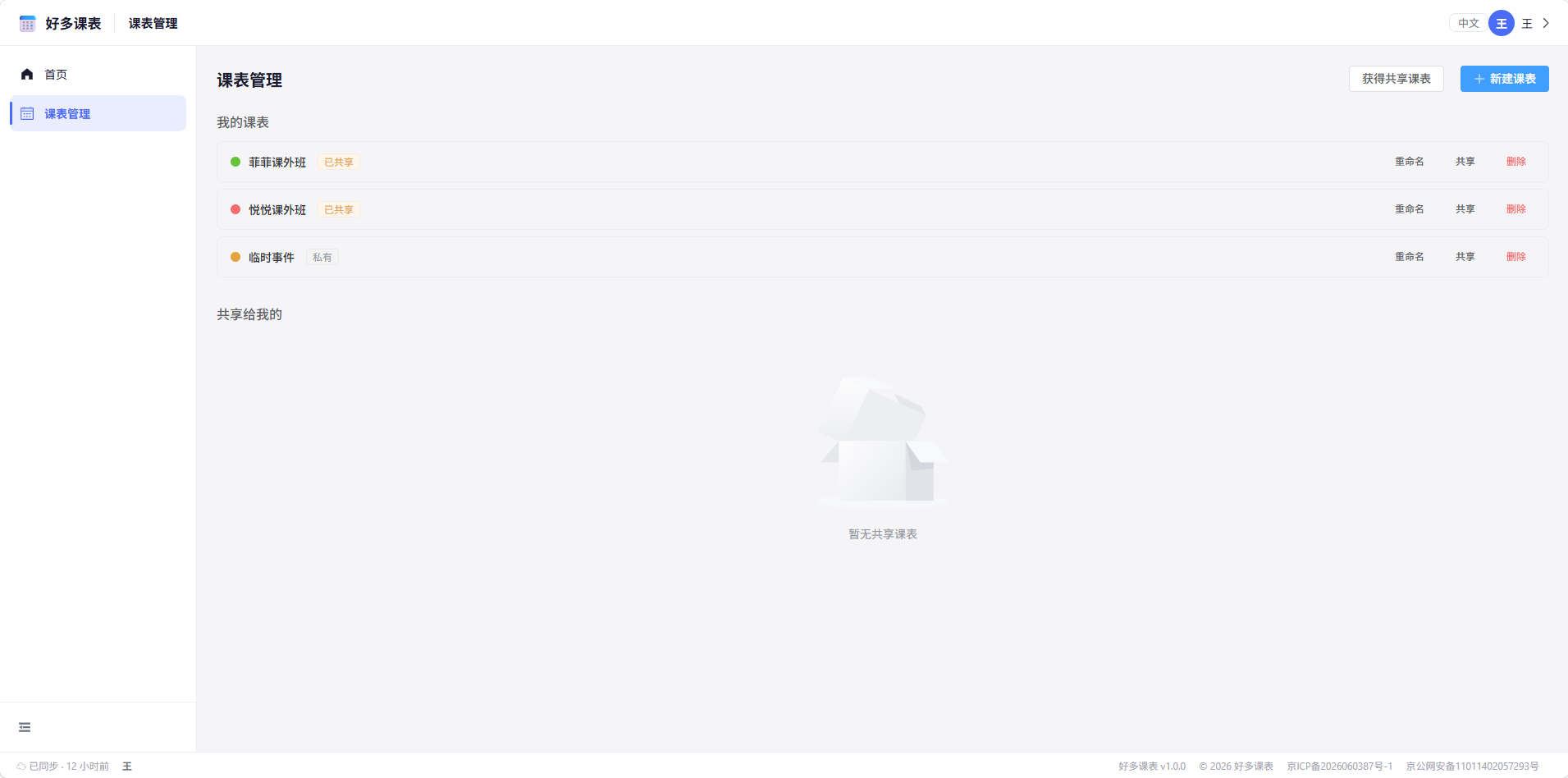
课表是课程的容器。每张课表有独立的名称与颜色,颜色用于在月/周视图中区分不同来源的课程。A schedule is a container for courses. Each schedule has its own name and color, used to distinguish sources in the calendar.
创建课表Create a schedule
- 在左侧导航点击「课表管理」。Click "Schedules" in the left navigation.
- 点击左上角「新建课表」按钮。Click "New schedule" at the top-left.
- 输入课表名称,并从 6 种颜色中选择一种(蓝 / 绿 / 橙 / 粉 / 紫 / 青)。Enter a name and pick one of six colors (blue / green / orange / pink / purple / teal).
- 点击「保存」,新课表即出现在「我的课表」列表中。Click "Save"; the new schedule appears under "My schedules".
重命名与删除Rename & delete
- 重命名 / 改色:点击课表右侧的「⋮」菜单,选择「重命名」或「修改颜色」。Rename / recolor: Click the "⋮" menu on the right of a schedule, then "Rename" or "Change color".
- 删除:在「⋮」菜单中选择「删除」。删除课表会一并删除其下全部课程,且不可恢复。Delete: Choose "Delete" from the "⋮" menu. Deleting a schedule removes all its courses and is irreversible.
共享给我的课表Schedules shared with you
在「课表管理」列表底部,会显示他人共享给你的课表,并标注来源与权限(「可编辑」或「仅查看」)。未登录不能编辑;登录且拥有编辑权限时可修改,也可将其「保存为我自己的课表」并退出共享。At the bottom of the Schedules list, schedules others shared with you appear, labeled with the source and permission ("Editable" or "View only"). You can't edit while signed out; when signed in with edit rights you may edit, or "Save as my own" and leave the share.
浏览:月 / 周视图Browsing: Month & Week
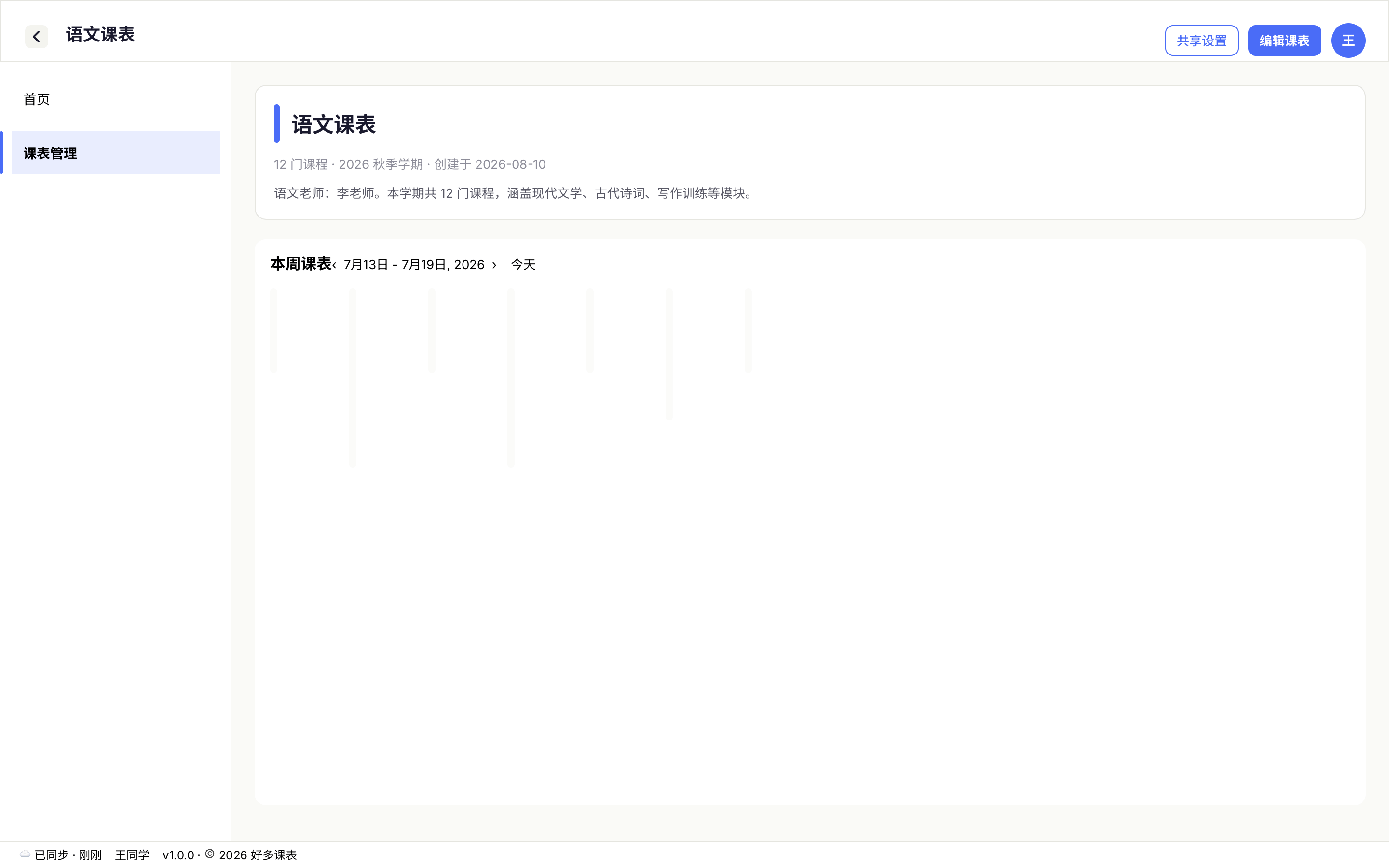
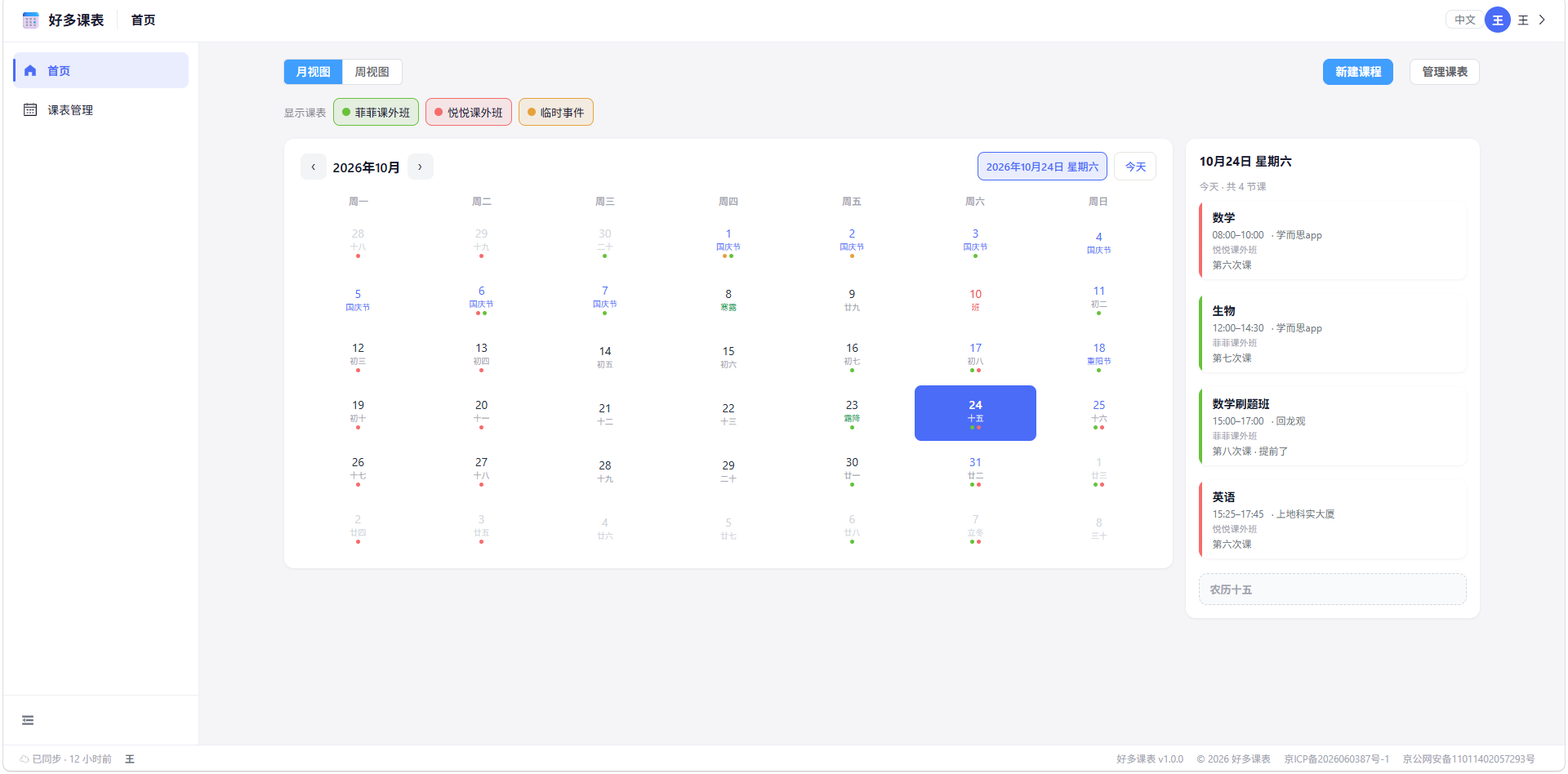
主页默认以日历形式展示课程。你可以在「月视图」总览有课日期,或在「周视图」查看每天的具体排布。The home page shows courses as a calendar. Use Month view for an overview of busy days, or Week view for the daily layout.
月视图Month view
- 7 列等宽网格,「今日」以墨色实底白字突出,周末用浅底区分。A 7-column grid; "today" is highlighted in solid ink with white text, weekends use a tinted background.
- 有课的日期底部显示一排彩色圆点,每种颜色对应一张课表来源。Days with courses show a row of colored dots—each color maps to a schedule source.
- 点击任意日期,会在该日期下方内联展开「当日课程」面板,列出该日全部课程(课程名 / 时间 / 地点 / 来源),无需弹窗。Click any date to inline-expand a "Day's courses" panel beneath it—all that day's courses (name / time / place / source), no dialog needed.
周视图Week view
- 左侧时间列 + 7 天列,每列按节次堆叠课程块,课程块按起止时间精确定位。A left time column plus 7 day columns; course blocks are positioned precisely by start/end time.
- 课程块显示「课程名 / 地点 / 教师」,今日列以浅底突出。Course blocks show name / place / teacher; today's column is tinted.
- 同一时段多门冲突课程会左右自动分列,便于一眼看清。Overlapping courses in the same slot are side-by-side automatically for clarity.
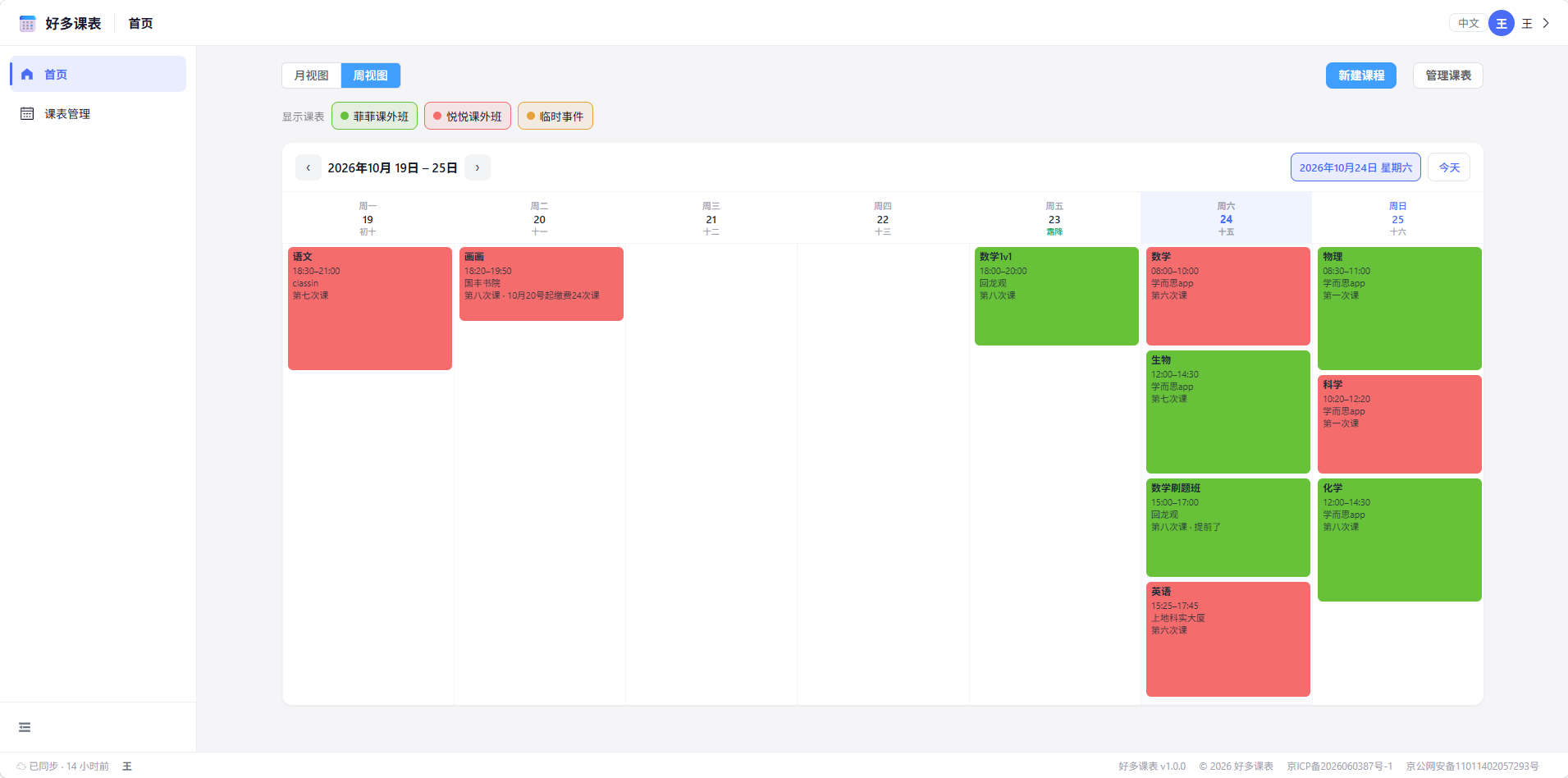
视图切换与可见性过滤Toggle view & filter visibility
- 切换月 / 周:使用顶栏的「月 / 周」分段控件,在两种视图间切换。Switch Month/Week: Use the "Month / Week" segmented control in the top bar.
- 回到今天:点击日历标题旁的「今天」按钮,快速跳转回当前日期。Back to today: Click "Today" next to the calendar title to jump back to the current date.
- 课表可见性:点击顶栏「课表 ▾」打开多选弹层,勾选 / 取消勾选即可控制某张课表是否在日历中显示(按色点区分)。Schedule visibility: Click "Schedules ▾" in the top bar to open a multi-select panel; check/uncheck to show or hide a schedule in the calendar (by its color dot).
课程管理Managing Courses
课程是课表中的具体排课。你可以添加、编辑、删除课程,并选择三种生成类型与编辑 / 删除范围。A course is a concrete entry in a schedule. Add, edit, or delete courses, and choose from three generation types plus edit/delete scopes.
添加课程Add a course
- 在首页右下角或「课表管理」中点击「添加课程」,弹出编辑对话框。Click "Add course" at the home bottom-right or in Schedules; an edit dialog opens.
- 填写:所属课表、课程名称(必填,最多 50 字)、上课时间段(开始—结束)、日期范围、周几(重复模式)、地点(可选)、备注(可选,最多 500 字)。Fill: Schedule, Course name (required, 50 chars max), Time range (start–end), Date range, Weekdays (repeat mode), Place (optional), Note (optional, 500 chars max).
- 选择生成类型(见下方),点击「保存」。Pick a generation type (below) and click "Save".
三种生成类型Three generation types
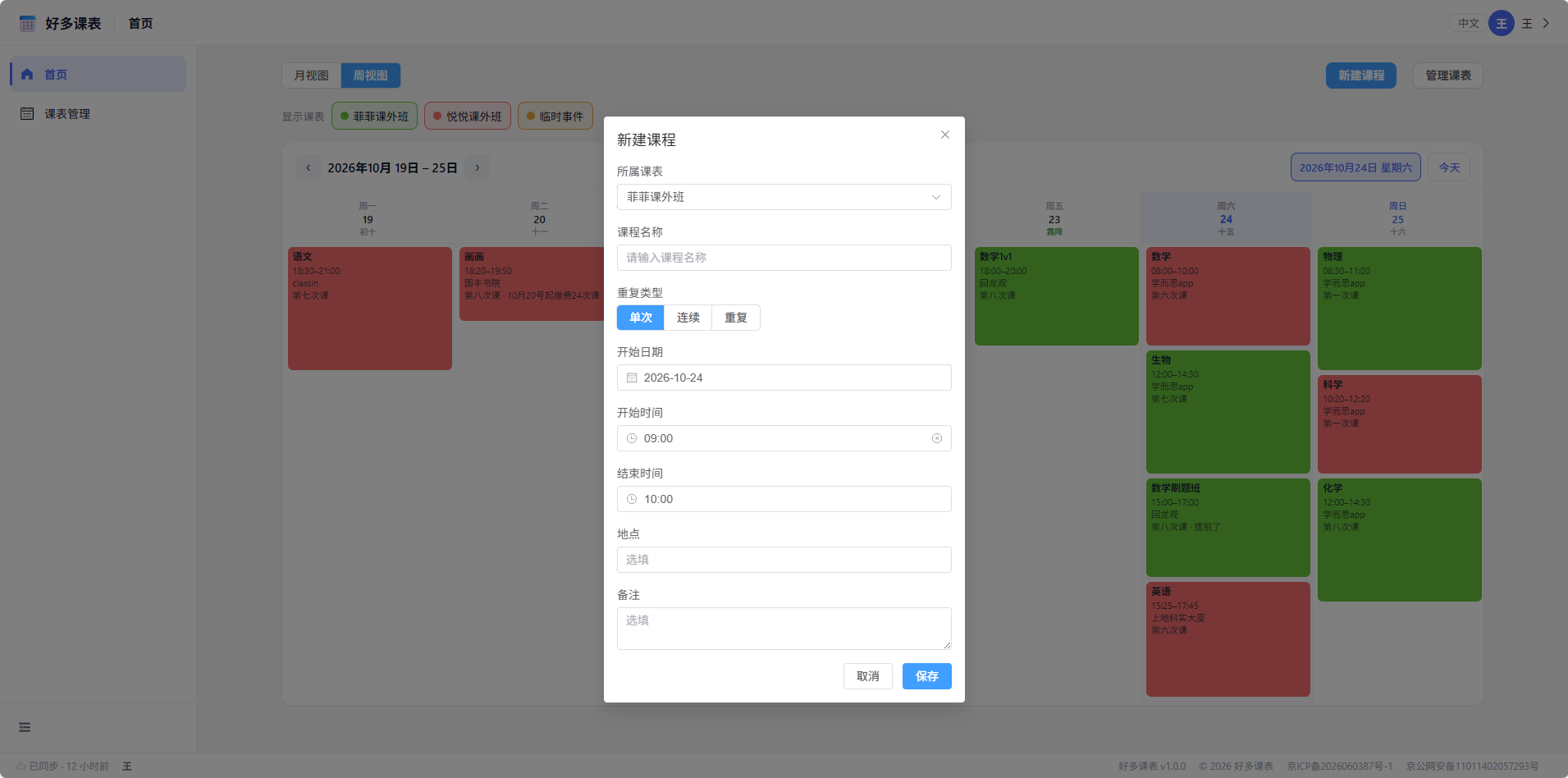
编辑与删除课程Edit & delete a course
- 查看详情:点击任意课程块 / 卡片,右侧抽屉展示课程详情(日期、时间、地点、备注、所属课表)。Details: Click any course block/card; a right drawer shows details (date, time, place, note, schedule).
- 编辑:在详情抽屉点击「编辑课程」→ 弹出对话框修改。Edit: In the drawer, click "Edit course" → dialog.
- 删除:在详情抽屉点击「删除课程」。Delete: In the drawer, click "Delete course".
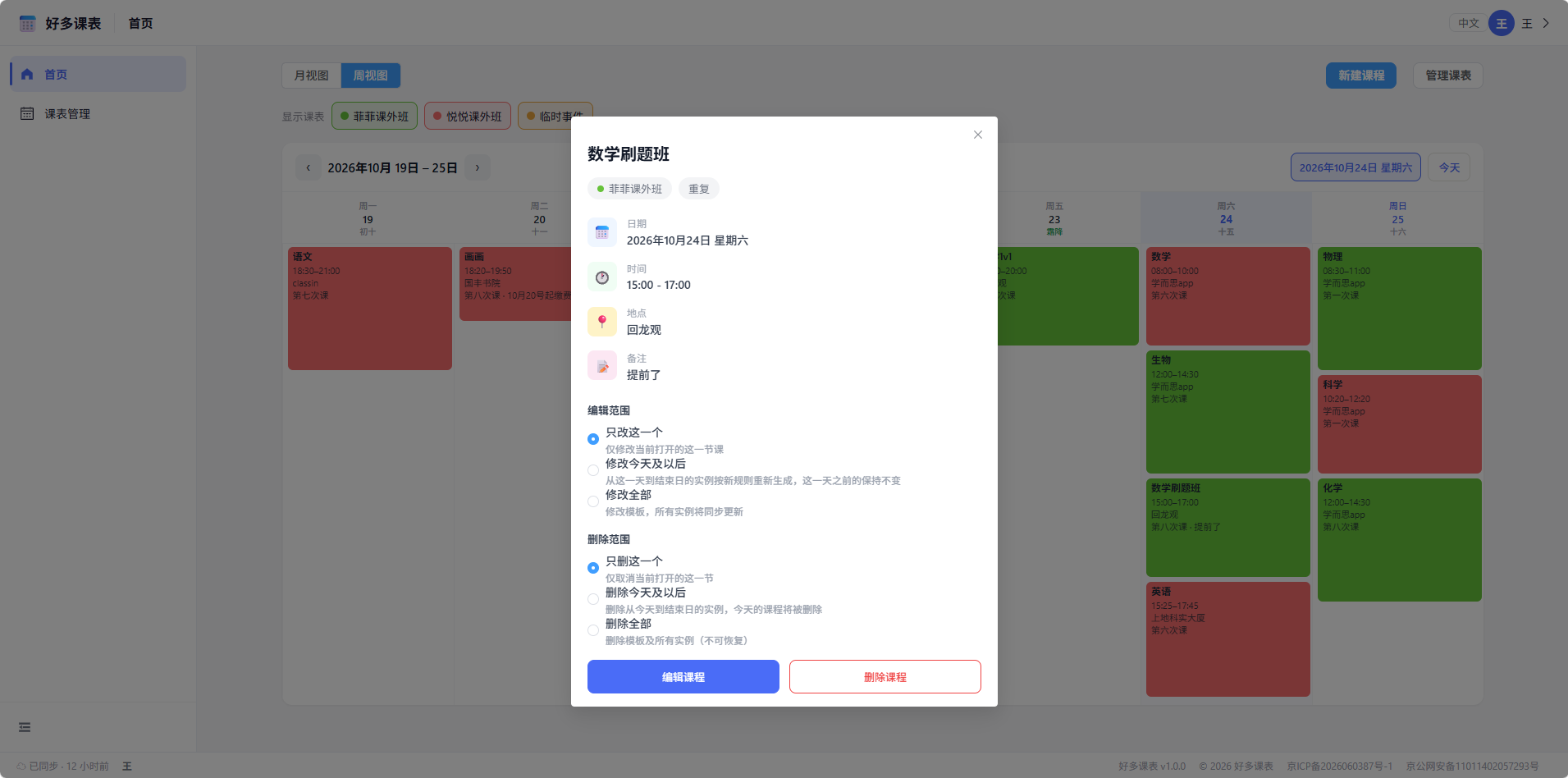
编辑范围 / 删除范围Edit scope / Delete scope
对于「连续 / 重复」课程,编辑或删除时可选择作用范围——这是好多课表的核心能力,让你既能批量管理又能量化到单天。For Continuous/Repeat courses, you choose a scope when editing or deleting—the core capability that lets you manage in bulk yet pinpoint a single day.
| 操作Action | 范围Scope | 效果Effect |
|---|---|---|
| 编辑Edit | 只改这一个This occurrence only | 仅修改选中那天的实例,与模板解耦(该实例被单独标记,不受"改全部"影响)。Edits only that day's instance, decoupled from the template (marked separately, unaffected by "All"). |
| 改全部All | 修改模板,所有未来实例按新规则重新生成(此前的单独修改会被重置)。Edits the template; all future instances regenerate (previous single edits are reset). | |
| 从这一天到结束日This & following | 仅重建所选日期起的实例,该日期之前的保留不动(仅重复课程)。Rebuilds instances from the chosen date onward; those before are kept (repeat only). | |
| 删除Delete | 只删这一个This occurrence only | 仅取消选中那天的课程。Cancels only that day's course. |
| 删全部All | 删除模板及所有实例,不可恢复。Deletes the template and all instances—irreversible. |
共享协作Sharing & Collaboration
把一张课表通过链接分享给他人,对方加入后即可按权限查看或共同编辑。非常适合班级课表、社团排课、家庭日程。Share a schedule by link; others join with a permission to view or co-edit. Great for class schedules, clubs, and family plans.
生成共享链接Create a share link
- 进入某张课表的详情 / 共享页(课表管理 → 课表「⋮」→ 共享,或详情页共享入口)。Open a schedule's detail/share page (Schedules → "⋮" → Share, or the detail page's share entry).
- 点击「复制链接」,系统生成形如
https://app.kechengbiao.com/j/xxxx的链接。Click "Copy link"; a link likehttps://app.kechengbiao.com/j/xxxxis generated. - 设置本次权限:仅查看(加入者只读)或 可编辑(加入者可修改课程)。Set permission: View only or Editable.
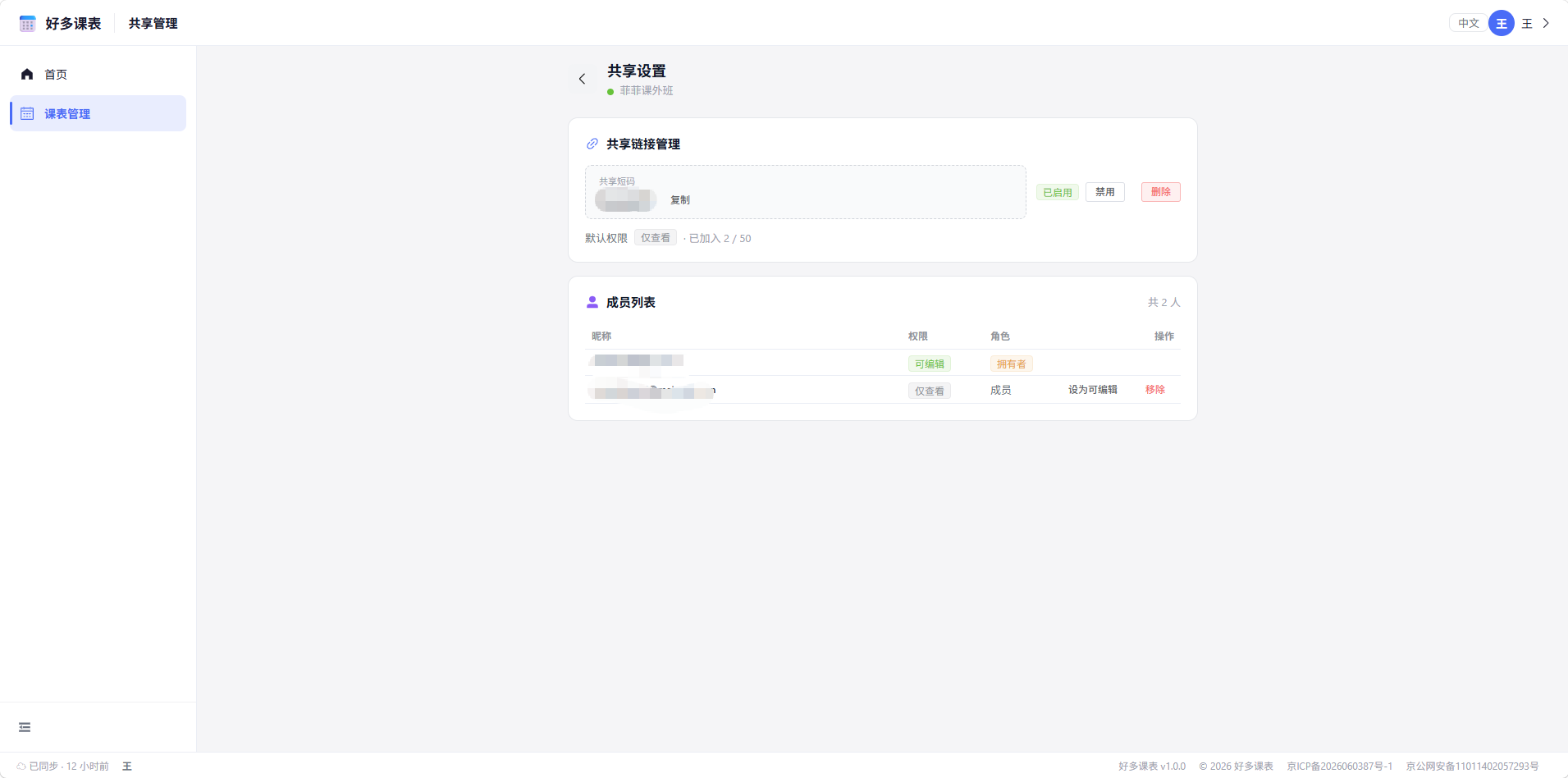
通过短码加入Join by short code
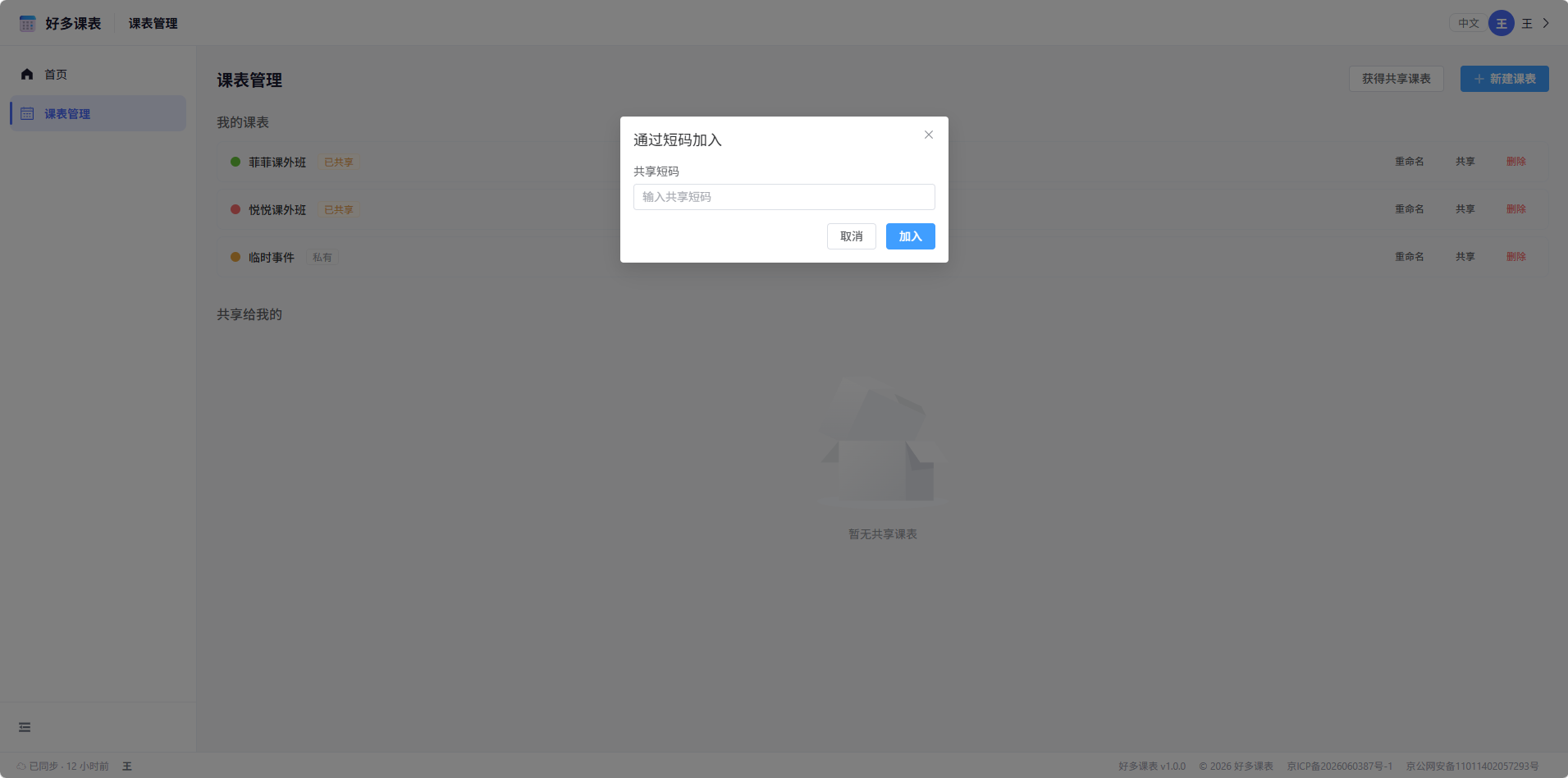
在「课表管理」页点击右上角「获得共享课表」,弹出「通过短码加入」对话框,输入对方提供的共享短码后点「加入」即可,无需完整链接。On the Schedules page, click "Get shared schedule" at the top-right; in the "Join by code" dialog, type the short code from the owner and click "Join"—no full link needed.
成员管理Member management
- 查看参与者:共享页列出所有成员及其权限。List members: The share page lists everyone and their permission.
- 修改权限:创建者可在「仅查看 ↔ 可编辑」之间切换成员权限。Change permission: The creator can toggle a member between view-only and editable.
- 移除成员:点击成员右侧移除按钮将其移出;创建者本人不可被移除。Remove: Click remove to kick a member; the creator cannot be removed.
数据同步Data Sync
登录同一账号后,Web 端与移动 App 的数据保持一致。理解同步机制,能帮你避免数据丢失与冲突。Signed in with the same account, the web and mobile app stay consistent. Understanding sync helps avoid loss and conflicts.
数据始终来自服务端,登录后自动以云端数据为准;本地仅用浏览器缓存提升加载速度。Data always comes from the server; after sign-in the cloud is the source of truth, with browser cache only for speed.
本地优先:未登录可离线使用;登录后在后台双向同步(push / pull)。Local-first: usable offline when signed out; background two-way sync (push/pull) after sign-in.
冲突处理规则Conflict rules
- 最后写入胜出(LWW):以
updated_at较新者为准;时间相同则云端优先。Last-Write-Wins (LWW): the newerupdated_atwins; on a tie, the cloud wins. - 跨设备主键一致:每条数据由客户端生成
uuid,Web 端写入的数据在 App 拉取后直接复用同一uuid,确保对照一致。Stable cross-device key: each row has a client-generateduuid; web-written data reuses the sameuuidwhen pulled into the app. - 本地痕迹:移动端以
is_dirty标记尚未推送的改动,联网后自动上报。Local trace: the app marks unsynced changes withis_dirtyand uploads automatically when online.
键盘快捷键Keyboard Shortcuts
Web 端支持键盘操作,提升在电脑上的浏览与录入效率。The web supports keyboard operation to speed up browsing and entry on a computer.
| 操作Action | 快捷键Shortcut | 说明Notes |
|---|---|---|
| 上一周 / 下一周Prev / Next week | ← → | 在周视图中翻周Navigate weeks in Week view |
| 上一月 / 下一月Prev / Next month | ↑ ↓ | 在月视图中翻月Navigate months in Month view |
| 新建课表 / 课程New schedule / course | Ctrl+N | 快速打开新建Open the create dialog |
| 关闭抽屉 / 对话框Close drawer / dialog | Esc | 退出详情或编辑弹层Dismiss detail or edit overlay |
常见问题Frequently Asked Questions
以下整理了用户最常遇到的问题。Answers to the questions users ask most.